Explicit content controls · YouTube
Checked August 18, 2026
YouTube Restricted Mode: turn it on, then lock it
Turn on Restricted Mode in every browser and app you use, then lock it: on the web with "Lock Restricted Mode on this browser", or across your whole network by pointing YouTube's hostnames at restrict.youtube.com in DNS. Restricted Mode is YouTube's own filter and YouTube says no filter is 100% accurate.
A platform-side model decides what counts. Misses are common on suggestive content, and the model changes without notice.
The honest line
Restricted Mode is set per browser and device, not on your account: it takes one tap to switch off unless something outside YouTube (a browser lock or your DNS) holds it on.
Who can lock it: Lock it per browser on the web with "Lock Restricted Mode on this browser", or for every device on your network by pointing YouTube's hostnames at restrict.youtube.com in DNS.
Availability: Restricted Mode is in the YouTube app (Android, iPhone and iPad) and on the web. The browser lock exists only on the web. The DNS lock needs a DNS resolver or proxy you control.
On this page
Restricted Mode
YouTube's optional setting that screens out "potentially mature content" using signals like the video title, description, metadata, Community Guidelines reviews and age restrictions. It also hides comments. You turn it on per browser, per profile and per device.
A platform-side model decides what counts. Misses are common on suggestive content, and the model changes without notice.
YouTube on the web (computer)
- Sign in to your account on youtube.com. Official YouTube destination (opens in a new tab)
At the top right, click your profile photo.
At the bottom of the menu, click "Restricted Mode".
The box that opens says: "This helps hide potentially mature videos. No filter is 100% accurate. This setting only applies to this browser."
- Click the "Activate Restricted Mode" switch to turn it on. Official YouTube destination (opens in a new tab)
Repeat in every browser and every browser profile you use. YouTube: "Restricted Mode works on the browser or device level, so you must turn it on for each browser you use."
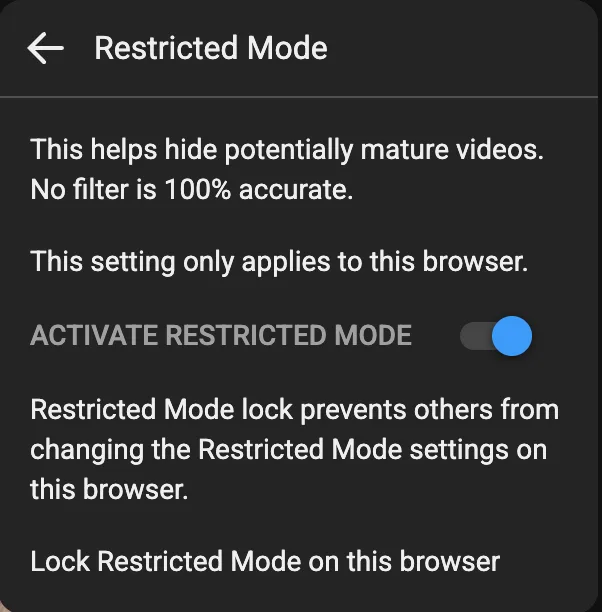
youtube.com: profile photo › Restricted Mode, switched on. The lock link appears once it is on. Captured 2026-08-18.
YouTube app (Android)
Sign in to your account in the YouTube app.
At the top right, tap your profile photo.
Tap "Settings", then "General".
- Turn on "Restricted Mode". Official YouTube destination (opens in a new tab)
Do this on each device and in each profile.
YouTube app (iPhone and iPad)
Sign in to your account in the YouTube app.
At the top right, tap your profile photo.
Tap "Settings", then "General".
- Turn on "Restricted Mode". Official YouTube destination (opens in a new tab)
Do this on each device and in each profile.
What it covers
- Videos YouTube's signals mark as potentially mature (title, description, metadata, Community Guidelines reviews, age restrictions)
- Age-restricted videos, which YouTube does not show to viewers with Restricted Mode on
- Comments: with Restricted Mode on you cannot view comments on the videos you watch
What it does not cover
- Per browser and device, not account-wide: every browser, browser profile, app and device you use needs its own switch
- YouTube's own words: "No filter is 100% accurate", and it says quality "may vary" across languages and cultures
- Anyone with the browser or device can turn it off in one tap unless you add the browser lock or a DNS lock
Lock Restricted Mode on this browser
On the web, once Restricted Mode is on, YouTube offers "Lock Restricted Mode on this browser". YouTube's box says: "Restricted Mode lock prevents others from changing the Restricted Mode settings on this browser." It covers one browser only.
A passcode, a supervisor, or DNS keeps the setting from being switched back off in a weak moment.
YouTube on the web (computer)
- Sign in on youtube.com, click your profile photo, then click "Restricted Mode". Official YouTube destination (opens in a new tab)
Turn on "Activate Restricted Mode".
Open the same box again. Below the switch, click "Lock Restricted Mode on this browser".
- If it will not turn off later, check who set it. Official YouTube destination (opens in a new tab)
YouTube: "If you've entered your username and password and Restricted Mode remains on", open the YouTube content restrictions page; it "will assess whether an administrator set up these restrictions, or if they are on your personal account".
What it covers
- The Restricted Mode setting in this one browser, so it is not switched off casually
What it does not cover
- Web only: the YouTube apps have no lock
- One browser at a time: another browser or browser profile on the same computer is not locked
- It still relies on Restricted Mode's filter, with the same misses
Network lock: restrict.youtube.com DNS or the YouTube-Restrict header
Google documents a network-level way to force Restricted Mode: point YouTube's hostnames at restrict.youtube.com (Strict) or restrictmoderate.youtube.com (Moderate) in DNS, or have a proxy add the header YouTube-Restrict: Strict or YouTube-Restrict: Moderate. Google writes it for administrators of a network or managed devices, and it works the same at home if you control the DNS.
A passcode, a supervisor, or DNS keeps the setting from being switched back off in a weak moment.
DNS you control (router, DNS server or filtering DNS service)
- Choose Strict or Moderate. Official YouTube destination (opens in a new tab)
Google: "To set strict restricted access, set the CNAME value to restrict.youtube.com. To set moderate restricted access, set the CNAME value to restrictmoderate.youtube.com."
In your DNS, add a CNAME for each YouTube hostname pointing at your chosen target.
The five hostnames: www.youtube.com, m.youtube.com, youtubei.googleapis.com, youtube.googleapis.com, www.youtube-nocookie.com.
Leave youtube.com, s.ytimg.com, youtu.be, googleapis.com and youtubeeducation.com alone.
Google: "If you change the CNAME for these hostnames, YouTube might not function correctly."
If you run a proxy instead of DNS, insert the header YouTube-Restrict: Strict (or Moderate) into requests to those hostnames.
Google notes: "HTTP header filtering is not supported for core applications."
- Test it: open the YouTube content restrictions page on a device that uses your DNS. Official YouTube destination (opens in a new tab)
It shows whether an administrator restriction is applied.
What it covers
- Every browser and YouTube app on devices that resolve DNS through your resolver, or that pass through your proxy
- What Google describes as your "network or managed devices", so it does not depend on a switch inside YouTube
What it does not cover
- Any device or app that sets its own DNS, uses encrypted DNS you do not control, or a VPN steps around it
- You need a DNS resolver, router or filtering service that lets you set CNAME records, or a proxy for the header method
- It only forces YouTube's own Restricted Mode, so what Restricted Mode misses still gets through
Supervised accounts, Family Link and YouTube Kids (household path)
For a child, the setting can be held on the parent's side. YouTube: "If you're a parent using the Family Link app, you can turn on Restricted Mode for your child's account" and "your child can't change the Restricted Mode settings on any device they're signed in to." Children under 13 can use a supervised kid account with a content setting, or the YouTube Kids app.
A passcode, a supervisor, or DNS keeps the setting from being switched back off in a weak moment.
Family Link app (parent's phone)
- For a child under 13, set up a supervised kid account and pick one of its 3 content settings, or use the YouTube Kids app. Official YouTube destination (opens in a new tab)
- For a child who is not eligible for a supervised experience, open the Family Link app on your device. Official YouTube destination (opens in a new tab)
Select "Controls", then "YouTube".
Turn "Restricted Mode" on.
YouTube: the child "can't change the Restricted Mode settings on any device they're signed in to".
What it covers
- The child's account on every device where they are signed in to it
What it does not cover
- Only for a child account you supervise; you cannot hold your own adult account this way
- The same device signed out or in another account follows that browser or device setting, not the child's
- It is still Restricted Mode, so the filter's misses are the same
YouTube questions
Is YouTube Restricted Mode account-wide?
No. YouTube says Restricted Mode "works on the browser or device level, so you must turn it on for each browser you use", and if a browser or device supports multiple profiles, for each profile. Only the DNS lock covers a whole network.
Does Restricted Mode catch everything?
No. The setting box on youtube.com says "No filter is 100% accurate", and YouTube's help says quality "may vary" because of differences in cultural norms and sensitivities.
Why will Restricted Mode not turn off?
It may be locked in that browser or forced by the network. YouTube points you to its content restrictions page (youtube.com/check_content_restrictions), which "will assess whether an administrator set up these restrictions, or if they are on your personal account".
Does Restricted Mode hide comments?
Yes. YouTube: "When Restricted Mode is turned on, you can't view comments on the videos you watch."
What On Guard adds
On Guard adds what a per-browser switch cannot: it detects explicit content on the screen itself, on Mac, Windows, and Android, checks each frame on the device and puts up a gate, whichever browser or app it happened in. When a known adult site is opened, your ally gets a check-in with the app, the device and the time, never the site.
The controls above are worth setting either way. On Guard is the layer for the moment a setting is not enough. How it works, explained.
Same platform, different job: Reset YouTube recommendations.