Explicit content controls · Search engines
Checked August 18, 2026
Turn on SafeSearch, then lock it in DNS
Set Google SafeSearch to Filter at google.com/safesearch, Bing to Strict at bing.com/account/general, and DuckDuckGo to Strict at duckduckgo.com/settings. Each one only filters that engine's results, and anyone at the keyboard can switch it back. To lock it, map the engine's domain to its SafeSearch host in your router or DNS service.
A platform-side model decides what counts. Misses are common on suggestive content, and the model changes without notice.
The honest line
SafeSearch filters search results. It does not block the sites, it lives in the browser or account you set it in, and anyone can switch it back in seconds. The lock is DNS on your router or resolver, not the account.
Who can lock it: No lock inside the setting unless a Family Link parent, a school or a workplace manages the account. Lock it from outside: map www.google.com to forcesafesearch.google.com, www.bing.com to strict.bing.com and duckduckgo.com to safe.duckduckgo.com in your router or DNS service.
Availability: All three settings are on the engines' web settings pages and apply in whatever browser holds the cookie or sign-in. Bing and DuckDuckGo both say clearing cookies resets the setting. Google shows a Lock icon at the top right when someone else manages it.
On this page
Google SafeSearch: Filter
Three states at google.com/safesearch. Google's labels: Filter helps filter out explicit images, text, and links. Blur helps blur explicit images, but explicit text and links may show. Off shows all relevant results, even if they're explicit. Blur is the default unless Google's systems indicate you may be under 18, when Filter is the default.
A platform-side model decides what counts. Misses are common on suggestive content, and the model changes without notice.
Google in any browser
- Go to google.com/safesearch. Official Search engines destination (opens in a new tab)
Select Filter.
Google's own text: Filter helps filter out explicit images, text, and links. Blur helps blur explicit images, but explicit text and links may show. Off shows all relevant results, even if they're explicit.
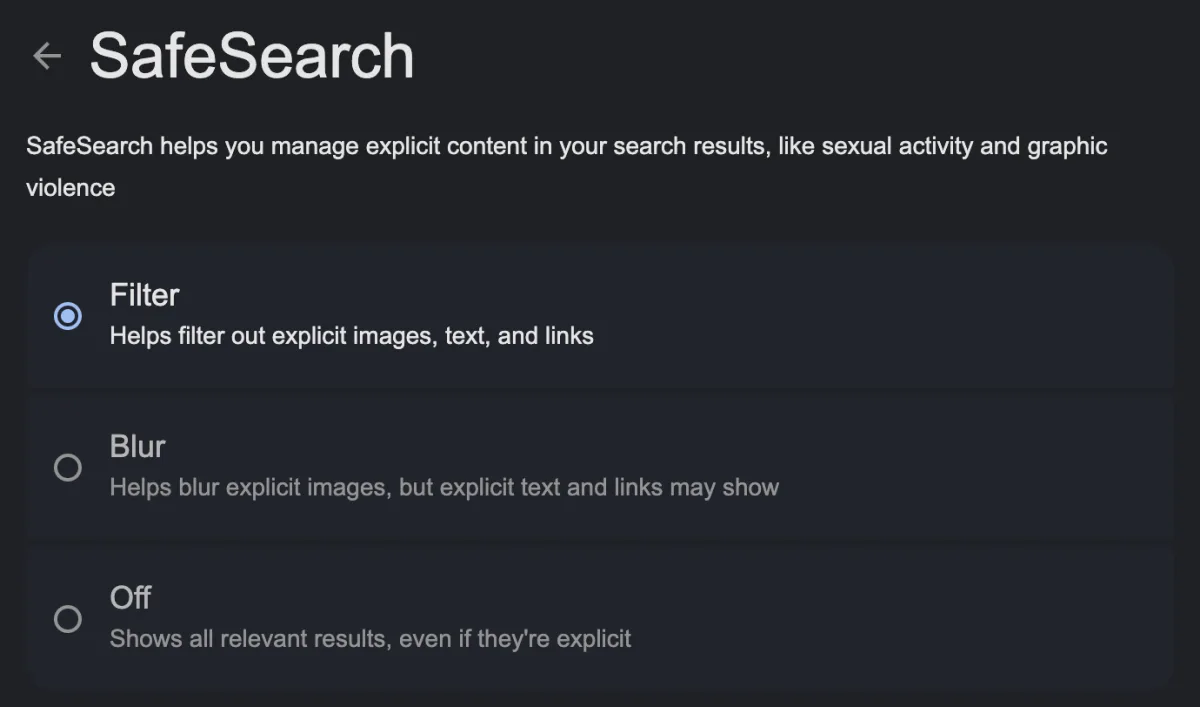
google.com/safesearch with Filter selected. Captured 2026-08-18. - You can also reach the page from a results page: at the top right of Google Search results, click your profile picture or initial. Official Search engines destination (opens in a new tab)
Look for a Lock icon at the top right.
If it shows, Google says your SafeSearch setting is locked by a parent, school, or device or network administrator, and you cannot change it here.
What it covers
- Explicit images, text and links in Google Search results when set to Filter
- What Google classes as nudity or explicit content, and violence and gore
- Google Search, Image search and Video search
What it does not cover
- Only Google Search. Google says it doesn't affect content on other search engines or websites
- Blur, the default, still lets explicit text and links show
- It filters results, not sites: a site opened by its address still loads
- Anyone at the keyboard can open google.com/safesearch and pick Off unless the Lock icon shows
- A public Wi-Fi network or managed device that enforces it does so only while you are on that network or device (Google: some public Wi-Fi networks enforce SafeSearch)
Bing SafeSearch: Strict
Strict, Moderate or Off at bing.com/account/general. Bing's labels: Strict filters out explicit text, images, and videos from your search results. Moderate filters explicit images and videos but not text, and is the default. Off doesn't filter explicit content. The page warns you'll need to make these changes again if you clear your cookies.
A platform-side model decides what counts. Misses are common on suggestive content, and the model changes without notice.
Bing in any browser
- Go to bing.com/account/general. Microsoft's own settings link on its SafeSearch help page redirects there. Official Search engines destination (opens in a new tab)
Under SafeSearch, click Strict.
Bing's page: Strict, Filter out explicit text, images, and videos from your search results. Moderate, Filter explicit images and videos but not text from your search results. Off, Don't filter explicit content from your search results.

bing.com/account/general with Strict selected. Captured 2026-08-18. Click Save.
Same page: You'll need to make these changes again if you clear your cookies.
- Repeat in every browser and profile you use. Microsoft says SafeSearch settings for Bing users under 18 may be automatically set to Strict. Official Search engines destination (opens in a new tab)
What it covers
- Explicit text, images and videos in Bing results at Strict
- Bing in the browser where the cookie was set, and Bing accounts Microsoft treats as under 18 (may be set to Strict automatically)
What it does not cover
- Per browser: clearing cookies puts it back to Moderate, and Moderate still shows explicit text
- Anyone can pick Off and Save; nothing on the page locks it
- Bing results only. Sites opened by their address still load
- The Edge sidebar uses edgeservices.bing.com, which the browser setting does not cover; Microsoft lists it separately for network mapping
DuckDuckGo Safe Search: Strict
A Strict, Moderate or Off dropdown at duckduckgo.com/settings, and under the search box on every results page. DuckDuckGo says it omits objectionable (mostly adult) material, and admits that sometimes content does get through that is not appropriately restricted. The setting is saved in a browser cookie.
A platform-side model decides what counts. Misses are common on suggestive content, and the model changes without notice.
DuckDuckGo in any browser
- Go to duckduckgo.com/settings. Official Search engines destination (opens in a new tab)
Under Safe Search, choose Strict.
DuckDuckGo's label: Safe Search, Omits objectionable (mostly adult) material. Options: Strict, Moderate, Off.

duckduckgo.com/settings: the Safe Search row. Pick Strict from the dropdown, then Save and Exit. Captured 2026-08-18. Click Save and Exit.
Same page: Deleting cookies will reset these settings. DuckDuckGo's help page adds that in its own browser the settings are backed up inside the browser and are not cleared by the Fire Button.
- Or search from safe.duckduckgo.com. DuckDuckGo says searches from safe.duckduckgo.com always have safe search set to 'strict'. Official Search engines destination (opens in a new tab)
Advanced: DuckDuckGo lists a URL parameter, &kp=1 for strict, &kp=-1 for moderate, &kp=-2 for off.
What it covers
- Adult material in DuckDuckGo results at Strict
- Any browser holding the DuckDuckGo settings cookie, or the DuckDuckGo browser
- safe.duckduckgo.com, which is always strict
What it does not cover
- Per browser and cookie: deleting cookies resets it
- Anyone can flip the dropdown on a results page or use DuckDuckGo's 'safeoff' bang command
- DuckDuckGo says content sometimes gets through that is not appropriately restricted
- DuckDuckGo results only. Sites opened by their address still load
Lock SafeSearch in DNS: forcesafesearch, strict.bing, safe.duckduckgo
Each engine publishes a host that always answers with SafeSearch on. Point the engine's domain at that host in your router or DNS service and every device on that network gets filtered results with no switch in the browser. Google: CNAME www.google.com and its country domains to forcesafesearch.google.com. Bing: CNAME www.bing.com to strict.bing.com. DuckDuckGo: CNAME duckduckgo.com to safe.duckduckgo.com.
A passcode, a supervisor, or DNS keeps the setting from being switched back off in a weak moment.
Router or DNS service (every device on the Wi-Fi)
- Google: make www.google.com, and any Google country domains your household uses, a CNAME for forcesafesearch.google.com. Official Search engines destination (opens in a new tab)
Google: this can't be undone at the browser level, and administrators of your device or network can lock the SafeSearch in 'Filter'.
- Bing: set the DNS entry for www.bing.com to be a CNAME for strict.bing.com. Microsoft also lists edgeservices.bing.com for the Edge sidebar. Official Search engines destination (opens in a new tab)
Microsoft: If you want to guarantee strict SafeSearch results for all users on your network, in your router or proxy server map www.bing.com to strict.bing.com.
- DuckDuckGo: set the DNS entry for duckduckgo.com to the safe.duckduckgo.com CNAME. Official Search engines destination (opens in a new tab)
DuckDuckGo: this will guarantee that safe search is enabled for all DuckDuckGo queries on the network, and that client safe search controls are disabled.
- No CNAME field? A filtering DNS service does the mapping for you. Official Search engines destination (opens in a new tab)
NextDNS's Parental Control has Enforce SafeSearch (filter explicit results on all major search engines, including images and videos), and CleanBrowsing's Family Filter sets Google, Bing and YouTube to SafeSearch. See the Router & DNS guide.
One computer you manage (hosts file)
- Google: map www.google.com and the Google country domains you use to forcesafesearch.google.com in the hosts file. Official Search engines destination (opens in a new tab)
Google's page gives 216.239.38.120 as an example IP address.
- Bing: map www.bing.com to strict.bing.com. Official Search engines destination (opens in a new tab)
Microsoft says the hosts file needs the actual IP for strict.bing.com rather than a CNAME, and gives 204.79.197.220 as the example.
Google notes that device administrators can undo this change, so it holds only on a computer where the person is not the administrator.
What it covers
- Every device that uses the router or resolver you changed
- Google Search, Image search and Video search in every browser; Bing; DuckDuckGo
- Forces each engine's strongest setting: Google Filter, Bing Strict, DuckDuckGo strict, with the browser controls disabled
What it does not cover
- Only the domains you map. A Google country domain you forgot, or a search engine you did not map, is untouched
- A device on mobile data, a VPN, or its own DNS (a browser's secure DNS set to a custom provider, Android Private DNS) skips your router
- It forces SafeSearch, which filters rather than blocks: an explicit site opened by its address still loads
- The IP addresses on Google's and Microsoft's pages are examples; the CNAME is the supported form and a hosts-file entry can go stale
Search engines questions
Does SafeSearch block porn sites?
No. It filters results on that search engine. Google says SafeSearch only works on Google Search and doesn't affect content on other search engines or websites. A site opened by its address still loads. To block sites you need a filtering DNS resolver; see the Router & DNS guide.
What is the difference between Google's Filter and Blur?
Google's own labels: Filter helps filter out explicit images, text, and links. Blur helps blur explicit images, but explicit text and links may show. Blur is the default unless Google's systems indicate you may be under 18, when Filter is the default.
Why does SafeSearch keep switching itself off?
On Bing and DuckDuckGo the setting lives in a browser cookie. Bing says you'll need to make these changes again if you clear your cookies, and DuckDuckGo says deleting cookies will reset these settings. A new browser, a private window or a cookie clean-up starts fresh. The DNS lock does not depend on cookies.
Can I lock SafeSearch so it cannot be turned off?
Not inside the setting, unless a Family Link parent, a school or a workplace manages the account. On your own network you can: Google says mapping www.google.com to forcesafesearch.google.com can't be undone at the browser level, DuckDuckGo says mapping duckduckgo.com to safe.duckduckgo.com disables client safe search controls, and Microsoft offers strict.bing.com the same way. It holds only for devices that use your DNS.
What On Guard adds
SafeSearch shapes a results page; On Guard works on the screen itself, detecting explicit content in real time on Mac, Windows, and Android, checking each frame on the device and putting up a gate. When a known adult site is opened, your ally gets a check-in with the app, the device and the time, never the site.
The controls above are worth setting either way. On Guard is the layer for the moment a setting is not enough. How it works, explained.