Device controls · Router & DNS
Checked August 18, 2026
Block adult sites for every device with a filtering DNS resolver
Point your router, or each device, at a filtering DNS resolver: Cloudflare 1.1.1.3 and 1.0.0.3, a NextDNS profile with the Porn category on, OpenDNS FamilyShield 208.67.222.123 and 208.67.220.123, or CleanBrowsing Family 185.228.168.168 and 185.228.169.168. Every device using that resolver stops loading known adult domains. It blocks domains, not content inside apps, and a VPN or a device with its own DNS walks around it.
Works only for what you name. Nothing new is caught until you name it too.
The honest line
DNS filtering blocks domains, not content inside apps. A domain that is not on the provider's list loads, and any device or app that sets its own DNS, or a VPN, steps around it.
Who can lock it: The lock is the router's admin password for the Wi-Fi, and the DNS profile or Private DNS field on each device. On iPhone a profile is non-removable only on a supervised device; Screen Time adds friction, but CleanBrowsing notes it does not block the Wi-Fi DNS page.
Availability: All four resolvers are free at the levels listed. Cloudflare, OpenDNS FamilyShield and CleanBrowsing need no account. NextDNS gives a temporary profile with no signup that expires in 7 days, and a free account to keep it (300,000 queries a month, then it resolves without filtering until the month resets or you pay).
On this page
Cloudflare 1.1.1.1 for Families (1.1.1.3)
Cloudflare's public resolver with a filter attached. The 1.1.1.3 and 1.0.0.3 pair blocks malware and adult content; 1.1.1.2 and 1.0.0.2 blocks malware only. Cloudflare says it automatically blocks DNS queries to domains associated with malware, phishing, or (optionally) adult content. No account, no dashboard, nothing to tune.
Works only for what you name. Nothing new is caught until you name it too.
Router (every device on the Wi-Fi)
- Open your router's admin page. Cloudflare lists http://192.168.1.1 for Linksys and Asus and http://routerlogin.net for Netgear. Official Router & DNS destination (opens in a new tab)
check the label on your router.
Enter the router credentials, find the DNS settings, and note the current addresses somewhere safe.
Replace the IPv4 DNS addresses with 1.1.1.3 and 1.0.0.3.
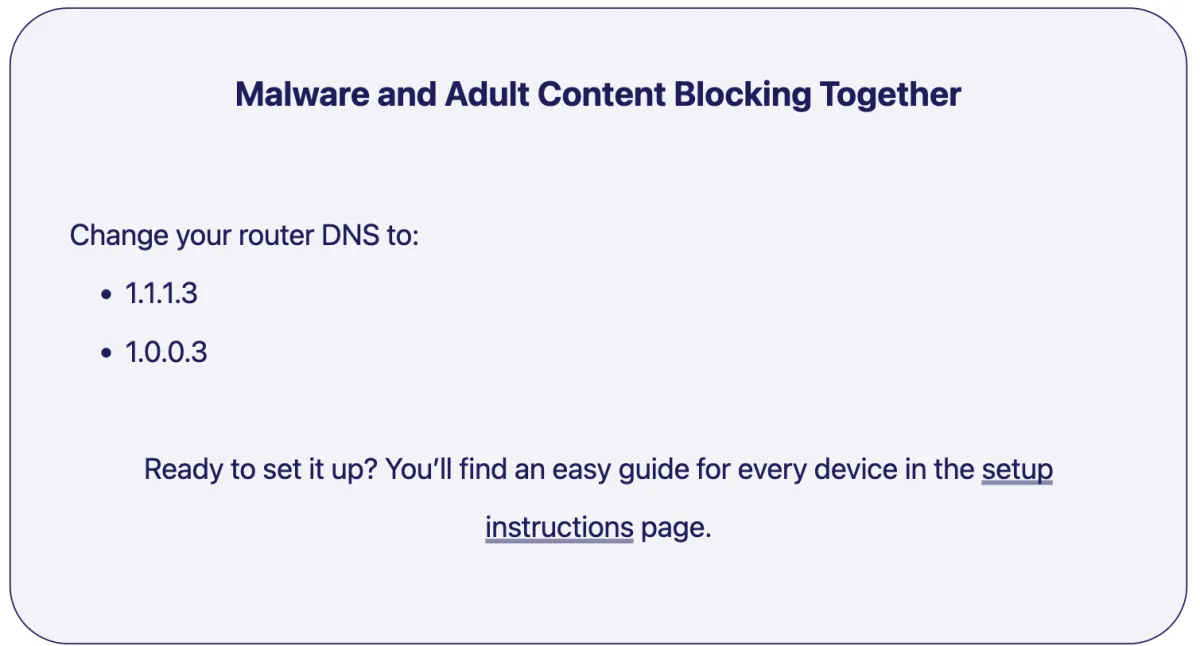
one.one.one.one/family: the addresses for malware and adult-content blocking. Captured 2026-08-18. If the router has IPv6 DNS fields, use 2606:4700:4700::1113 and 2606:4700:4700::1003.
Save. Cloudflare: Configuring 1.1.1.1 on your router applies the DNS setting to every device on your network.
One device (follows it off the home Wi-Fi)
- Android 9 and later: Settings > Network & internet > Advanced > Private DNS > Private DNS provider hostname. Official Router & DNS destination (opens in a new tab)
Enter family.cloudflare-dns.com. Cloudflare: your device uses that DNS resolver on all networks, including cellular.
- Windows 11: Settings > Network and Internet > your adapter > DNS server assignment > Edit > Manual. Official Router & DNS destination (opens in a new tab)
Enter 1.1.1.3 and 1.0.0.3 (IPv6 2606:4700:4700::1113 and 2606:4700:4700::1003).
- macOS: System Settings > Network > your service > Details > DNS, then add 1.1.1.3 and 1.0.0.3. Official Router & DNS destination (opens in a new tab)
Cloudflare notes this configures a specific network service such as Wi-Fi or Ethernet.
- iPhone and iPad: Settings > Wi-Fi > the (i) next to your network > Configure DNS > Manual, then add 1.1.1.3 and 1.0.0.3. Official Router & DNS destination (opens in a new tab)
Cloudflare: manual configuration only applies to the Wi-Fi network you are currently connected to and does not work for cellular connections.
- Apps and browsers that take an encrypted DNS address: DoH https://family.cloudflare-dns.com/dns-query, DoT family.cloudflare-dns.com. Official Router & DNS destination (opens in a new tab)
What it covers
- Domains Cloudflare classes as adult content, plus malware and phishing
- Every device that uses the router, or the single device you set up
- IPv4, IPv6, DNS over HTTPS and DNS over TLS, all free
What it does not cover
- One fixed list and no dashboard: you cannot add a site, allow a site, or see what was blocked
- A domain Cloudflare has not classed as adult loads normally
- Content inside apps and sites it allows: it only answers domain lookups
- A device with its own DNS, a browser's secure DNS set to a custom provider, mobile data, or a VPN skips the router setting
- Manual iPhone and Mac settings are per network and reset on the next Wi-Fi
NextDNS profile: Parental Control tab
A resolver with a dashboard. Each profile has a short ID; under Parental Control you add the Porn category, turn on Enforce SafeSearch, Enforce YouTube Restricted Mode and Block Bypass Methods, then point devices at that ID by hostname, DoH URL, IPv6, Apple profile or Linked IP. Try it now needs no signup; a free account keeps the settings.
Works only for what you name. Nothing new is caught until you name it too.
Set up the profile at my.nextdns.io
- Open nextdns.io and click Try it now (NextDNS: No signup required. Official Router & DNS destination (opens in a new tab)
Sign up later to save your settings), or log in. You land on a profile with a six-character ID.
Open the Parental Control tab.
Under Categories click ADD A CATEGORY and add Porn.
NextDNS describes it as blocking adult and pornographic content, including escort sites and similar domains. Dating, Gambling, Piracy, Social Networks, Online Gaming and Video Streaming are the other categories.
Turn on Enforce SafeSearch.
NextDNS: Filter explicit results on all major search engines, including images and videos. This will also block access to search engines not supporting this feature.
Turn on Enforce YouTube Restricted Mode and Block Bypass Methods.
NextDNS: Prevent or hinder the use of methods that can help bypass NextDNS filtering on the network. This includes VPNs, proxies, Tor-related software and encrypted DNS providers.
Sign up for the free account so the profile survives.
NextDNS: This temporary account will expire in 7 days and is only accessible from this browser.
Point devices at the profile (Setup tab)
- Open the Setup tab to see your endpoints. Official Router & DNS destination (opens in a new tab)
DNS-over-TLS/QUIC yourID.dns.nextdns.io, DNS-over-HTTPS https://dns.nextdns.io/yourID, two IPv6 addresses, and IPv4 servers with Linked IP (NextDNS: mostly for use on home networks and not recommended on mobile).
Android 9 or higher: Settings > Network & internet > Advanced > Private DNS > Private DNS provider hostname.
Enter yourID.dns.nextdns.io and hit Save.
- iPhone, iPad, Mac: generate a configuration profile at apple.nextdns.io. Official Router & DNS destination (opens in a new tab)
NextDNS: install on any Apple device to set up NextDNS on all networks. iOS: Settings > Profile Downloaded > Install. macOS: open the .mobileconfig, then Profiles > Install.
Windows 11: Settings > Network & internet > Wi-Fi or Ethernet > Hardware properties > DNS server assignment > Edit > Manual.
Enter 45.90.28.0 as Preferred DNS and 45.90.30.0 as Alternate DNS, each with On (manual template) and https://dns.nextdns.io/yourID. Or install NextDNS for Windows and set your Configuration ID.
Router: enter the profile's IPv6 addresses, or the IPv4 servers plus Link IP.
Or run the NextDNS client on a router that can run executables (NextDNS points to github.com/nextdns/nextdns/wiki).
What it covers
- The categories and named sites you add: Porn, Dating, Gambling, Piracy, Social Networks, Online Gaming, Video Streaming, plus specific websites, apps and games
- SafeSearch on major search engines and YouTube Restricted Mode, forced at DNS
- Known VPN, proxy, Tor and encrypted-DNS domains when Block Bypass Methods is on
- Logs and analytics of what each device tried to reach, if you keep them on
What it does not cover
- Domains only: a page or app NextDNS resolves is not inspected
- The Porn category is NextDNS's list; a new or uncategorised domain loads
- A device not pointed at your profile ID uses whatever DNS it had, and Linked IP breaks when your home IP changes
- Block Bypass Methods says prevent or hinder, not stop
- Free plan: NextDNS says once the 300,000 monthly query limit is reached it becomes a standard DNS resolver with no filtering, no logging, until the month resets or you pay
OpenDNS FamilyShield or CleanBrowsing Family Filter (no account)
Two more free resolvers with a fixed adult filter and no account. OpenDNS FamilyShield (208.67.222.123 and 208.67.220.123) is what OpenDNS calls preconfigured to block adult content, set it & forget it, IPv4 only. CleanBrowsing Family (185.228.168.168 and 185.228.169.168) blocks adult, proxy and VPN, and mixed-content sites such as Reddit, forces SafeSearch on Google, Bing and YouTube, and offers encrypted DNS plus Apple profiles; its Adult Filter blocks less.
Works only for what you name. Nothing new is caught until you name it too.
OpenDNS FamilyShield on the router (OpenDNS marks it Recommended)
- Open opendns.com/setupguide and pick Home routers, or Computer Workstations and Laptops, Smart Devices, or Servers. Official Router & DNS destination (opens in a new tab)
In the router's DNS settings replace the addresses with 208.67.222.123 and 208.67.220.123.
OpenDNS: When following the device instructions, be sure to use our FamilyShield nameservers instead.
Save, then use the test link on the setup guide (welcome.opendns.com) to confirm the router is using OpenDNS.
CleanBrowsing Family Filter on the router or a device
- Family Filter IPv4: 185.228.168.168 and 185.228.169.168. IPv6: 2a0d:2a00:1:: and 2a0d:2a00:2::. Official Router & DNS destination (opens in a new tab)
Enter them in the router's DNS fields or a device's DNS settings.
Encrypted: DoT hostname family-filter-dns.cleanbrowsing.org, DoH https://doh.cleanbrowsing.org/doh/family-filter/.
- iPhone, iPad, Mac: cleanbrowsing.org/apple-dns offers a Family profile. Official Router & DNS destination (opens in a new tab)
CleanBrowsing: iOS 14+ required, install via Settings > Profile Downloaded; macOS Big Sur+, install via System Settings > Profiles. It says the profile works system-wide on all networks (Wi-Fi, cellular, VPN).
If Family blocks too much, the Adult Filter is 185.228.168.10 and 185.228.169.11.
IPv6 2a0d:2a00:1::1 and 2a0d:2a00:2::1. CleanBrowsing: it does not block proxy or VPNs, nor mixed-content sites. Sites like Reddit are allowed.
What it covers
- OpenDNS: adult-content domains on its preset FamilyShield list, for every device on the router, no account
- CleanBrowsing Family: adult and explicit sites, proxy and VPN domains, mixed-content sites such as Reddit, malicious and phishing domains, with SafeSearch forced on Google, Bing and YouTube
- CleanBrowsing: encrypted DNS hostnames and free Apple profiles; OpenDNS: plain IPv4 addresses only
What it does not cover
- Fixed lists on both: nothing to add, allow or review (OpenDNS Home with a sign-up and CleanBrowsing paid plans are the customisable versions)
- OpenDNS's setup guide lists IPv4 addresses only, and it is easy to mix up with 208.67.222.222 and 208.67.220.220, which are the OpenDNS Home addresses, not FamilyShield
- CleanBrowsing Family blocks whole mixed sites such as Reddit; its Adult Filter lets them through and does not block VPNs
- Domains only; content inside allowed apps passes
- CleanBrowsing says the Apple profile can be removed at any time from device settings
Where the lock lives: router password, device profile, supervision
Two places to set it, two things that hold it. At the router the admin password is the lock and every device on the Wi-Fi is covered, but only on that Wi-Fi. On a device, the DNS profile or Private DNS field follows it onto mobile data, but the person holding the device can usually change it back unless the device is supervised. Neither stops a VPN, a browser's own secure DNS, or an app that brings its own resolver.
A passcode, a supervisor, or DNS keeps the setting from being switched back off in a weak moment.
Router: every device on the Wi-Fi
- Set the filtering resolver in the router's DNS fields, as in the controls above. Official Router & DNS destination (opens in a new tab)
Cloudflare: it applies the DNS setting to every device on your network.
The router's admin credentials are the lock: whoever has them can put the old DNS back.
It stops at the front door.
Mobile data and other Wi-Fi networks use their own DNS, so pair it with a per-device setting on phones and laptops that leave the house.
iPhone, iPad, Mac: configuration profile
- Install the provider's DNS profile (apple.nextdns.io or cleanbrowsing.org/apple-dns). Official Router & DNS destination (opens in a new tab)
Apple's DNS Settings payload documentation: when installed manually, this setting also applies to cellular networks.
- Non-removable only under supervision. Official Router & DNS destination (opens in a new tab)
Apple: the prohibit-disablement key is only available on supervised devices. NextDNS exposes it at apple.nextdns.io under More options as Prohibit Disablement, and CleanBrowsing's guide uses Apple Configurator to put a device in Supervised Mode and deploy a non-removable profile.
- Without supervision, the profile can be removed at any time from device settings. Official Router & DNS destination (opens in a new tab)
Screen Time adds friction: set a Screen Time passcode and turn on Content & Privacy Restrictions, but CleanBrowsing notes that Screen Time does not directly restrict access to the General Settings page, so users can still view Wi-Fi DNS settings.
Android: Private DNS
- Settings > Network & internet > Advanced > Private DNS > Private DNS provider hostname. Official Router & DNS destination (opens in a new tab)
Enter the provider hostname: family.cloudflare-dns.com, yourID.dns.nextdns.io, or family-filter-dns.cleanbrowsing.org.
Cloudflare: when you configure Private DNS, your device uses that DNS resolver on all networks, including cellular.
There is no passcode on that field.
CleanBrowsing's own lock guide falls back to hiding the Settings app or a third-party app locker, and notes quick-settings tiles can still be reached without opening Settings.
Windows 11: encrypted DNS
- Settings > Network & internet > Wi-Fi or Ethernet > Hardware properties > DNS server assignment > Edit > Manual. Official Router & DNS destination (opens in a new tab)
Enter the resolver's addresses and, where the provider offers it, set DNS over HTTPS to On (manual template) with the provider's DoH URL.
It is per adapter, so set it for both Wi-Fi and Ethernet.
- Chrome and Firefox keep their own secure DNS setting on top of the system one. Official Router & DNS destination (opens in a new tab)
leave those on their default or on your filtering provider, not a third party.
What it covers
- Router lock: everyone on that Wi-Fi, no per-device setup
- Device profile or Private DNS: follows the device onto mobile data
- Supervised iPhone or iPad: a profile the user cannot remove
What it does not cover
- A VPN, a proxy, or a browser's own secure DNS set to a custom provider resolves names elsewhere. Firefox: Custom protection will always use secure DNS with the provider you select. Chrome: Use secure DNS can be set to a custom provider
- Mobile data and other Wi-Fi networks bypass a router-only setup
- Any app that ships its own resolver, and any device the person can reconfigure
- Nothing here inspects content; it only decides which domains resolve
Router & DNS questions
Does filtering DNS block explicit content inside apps like Reddit, X or Discord?
No. DNS answers domain lookups. If the app's domain is allowed, everything inside it loads; if the domain is blocked, the whole app or site is blocked. CleanBrowsing's Family Filter blocks mixed-content sites like Reddit outright for exactly this reason, and its Adult Filter allows them. Acting on content inside an allowed app takes something on the device.
Router or per device: which one?
Router covers every device on that Wi-Fi with one change and the admin password is the lock, but it stops at the front door: mobile data and other networks use their own DNS. A per-device profile or Private DNS hostname follows the device everywhere (Cloudflare says Android Private DNS applies on all networks including cellular, and Apple says a manually installed DNS profile also applies to cellular), but the person holding the device can usually remove it. Many people do both.
How does a VPN or a browser's secure DNS get around it?
They resolve names somewhere else. Firefox's Custom protection will always use secure DNS with the provider you select, Chrome's Use secure DNS can be set to a custom provider, and a VPN carries DNS inside its tunnel. NextDNS's Block Bypass Methods and CleanBrowsing's Family Filter block known VPN, proxy and encrypted-DNS domains, which hinders this but does not end it.
Which addresses do I actually type?
Cloudflare adult and malware: 1.1.1.3 and 1.0.0.3 (IPv6 2606:4700:4700::1113 and 2606:4700:4700::1003, DoH https://family.cloudflare-dns.com/dns-query, DoT family.cloudflare-dns.com). OpenDNS FamilyShield: 208.67.222.123 and 208.67.220.123. CleanBrowsing Family: 185.228.168.168 and 185.228.169.168 (IPv6 2a0d:2a00:1:: and 2a0d:2a00:2::, DoT family-filter-dns.cleanbrowsing.org). NextDNS: your profile's own ID, shown on its Setup tab. All read from the providers' pages on 18 August 2026.
What On Guard adds
DNS decides which domains load; On Guard works on what is on the screen. On Mac, Windows, and Android it detects explicit content in real time, checks each frame on the device and puts up a gate, in apps a domain list cannot see inside. When a known adult site is opened, your ally gets a check-in with the app, the device and the time, never the site.
The controls above are worth setting either way. On Guard is the layer for the moment a setting is not enough. How it works, explained.